Running QUCS Studio (uSimmics) on a Mac
Published May 31, 2025
Hi, if you're reading this you must be truly desperate — casual readers would never ever click a blog post titled like this. Today I'm gonna walk you through running QUCS Studio on your Mac computer.
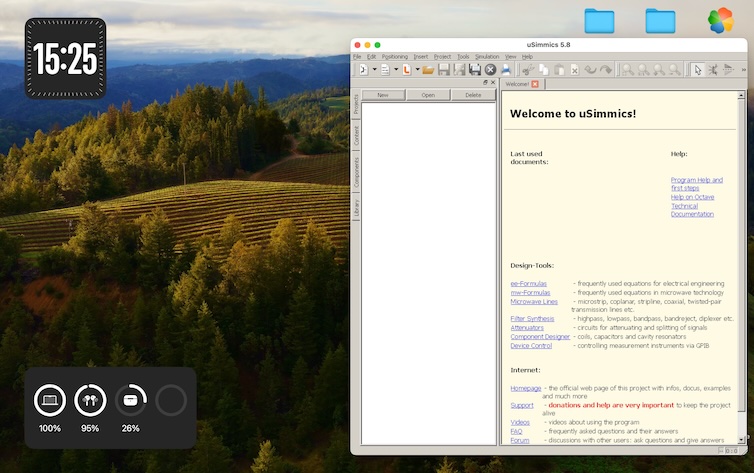
Background
Software people love Apple, but real engineers use software that only runs on Windows. As an aspiring EE, I can usually get by for circuit/SPICE simulation via Paul Falstad's lovely CircuitJS web calculator or LTSpice.app, but as I got into more high frequency stuff, there were rapidly fewer options. While Windows users get to pick from Microwave Office, Pathwave ADS, HFSS, or Cadence, Apple users get nothing at all. This software is big, bulky, and running it in a VM is painful. Luckily there are some smaller packages which can do the same simulation, such as QUCS-Studio (which looks very familiar for ADS users), but again, annoying to run in a VM. If not a VM, you might think of Wine for running an .exe, to which I can respond I've never ever gotten that to work for anything.
However, recently I found a guide by Vanderson PC (link, mirror) on running QUCS-Studio using PlayOnMac. I followed it diligently and it did not work either. This is because the guide is from 2017 and there have been a lot of MacOS breaking changes in the meantime, and PlayOnMac has not been so updated. However, the problems were solvable and I will share how.
1. start the guide
Ok just do everything the guide says. Yes uSimmics 5.8 works even though the blog author is running QUCS-Studio 3.3.4
2. follow the guide until Step 6
On step 6, you are asked to select a Wine version. I don't have a wine version. The first step of this guide should be how to install a wine version on PlayOnMac.
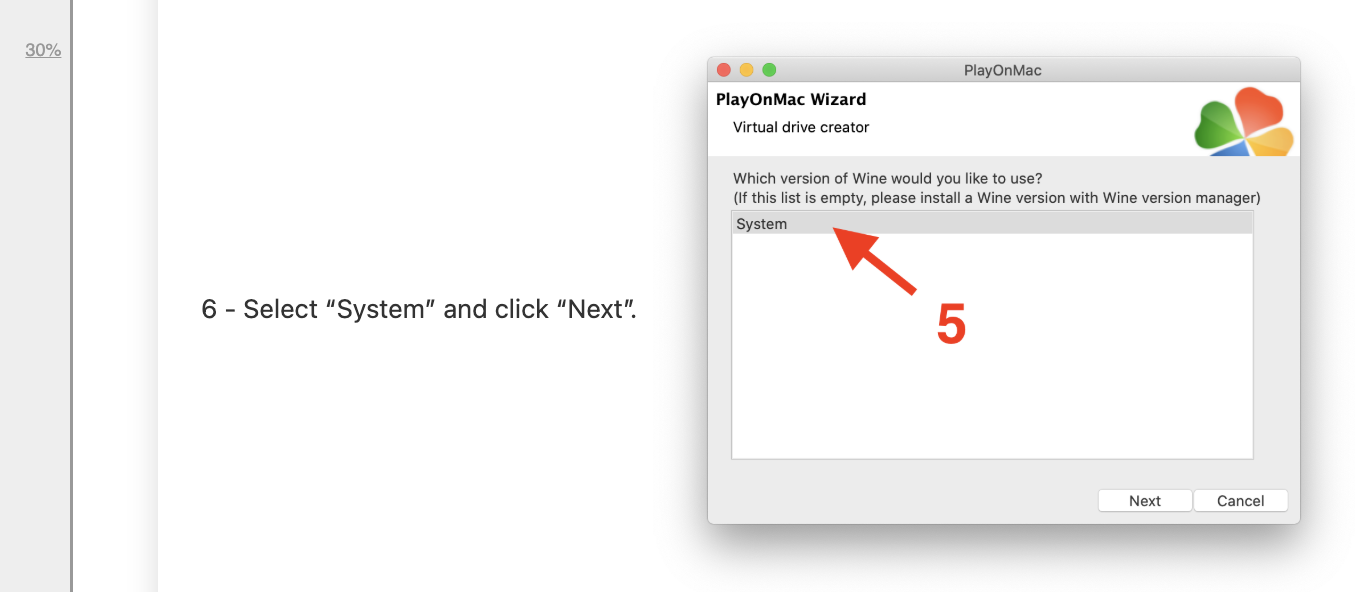
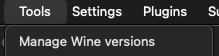
Leave the configuration menu. Install a Wine version by going to Tools->Manage Wine versions.
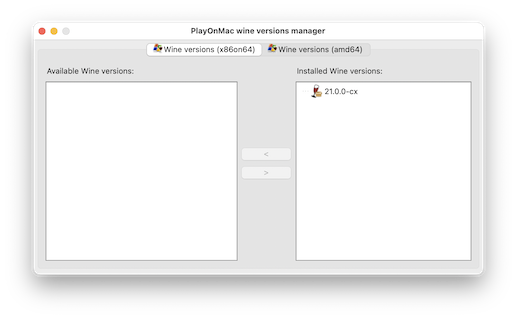
If you're like me, the list on the left is empty. Pretty daunting. If it's still empty after 5s you have a problem.
After reading some forums, I realized that PlayOnMac makes some questionable code decisions. One of which is that all the URL requests have a 5s timeout and then fail silently. To figure out where it's failing, you exit PlayOnMac (Cmd+Q), open up a terminal and navigate to the .app file, and then run the application file from the terminal so you can see the debug messages (Find PlayOnMac.app, then run ./PlayOnMac.app/Contents/MacOS/playonmac). It should boot normally.

Now go to the Tool->Wine window again. If the list stays empty, you should see something like this:
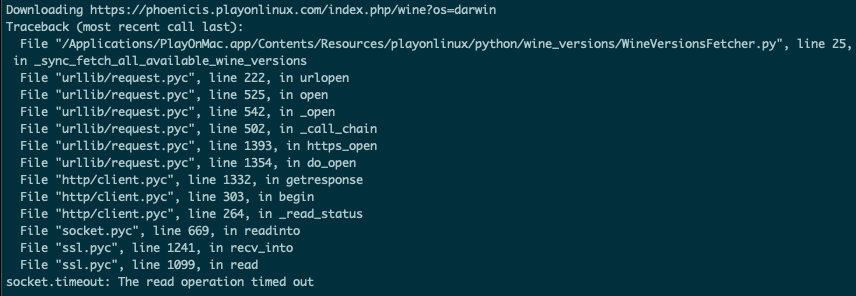
So, you can check that the "phoenicis" URL is still active by just going to it using your browser. If it's still up, it just means that their server is slow and the request is just timing out locally. Go into the "WineVersionsFetcher.py" file and change the timeout to like 15 or 30 or 60 seconds. Then you'll get your Wine version downloaded.
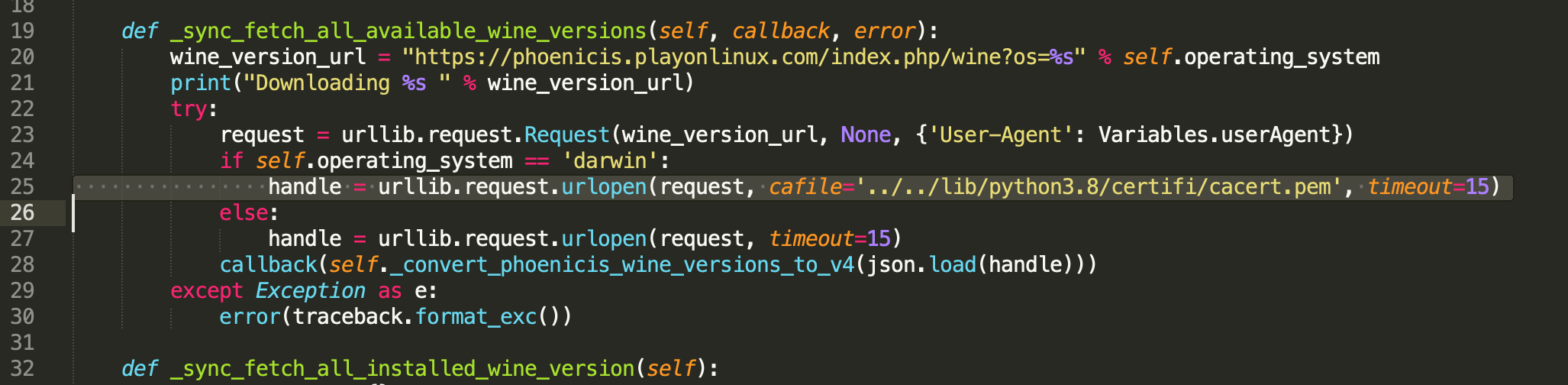
After that continue following the guide. Other people on the forums had an issue where Wine wouldn't download properly, but you could download it yourself and move it into the directory it was supposed to be in and it'd work. Honestly I feel a bit like a battle medic when I'm doing edits like this, but y'know, it's gotta work.
Step 3. finish the guide.
Just follow the other guy's post, it's a good blog. No step should throw an error.
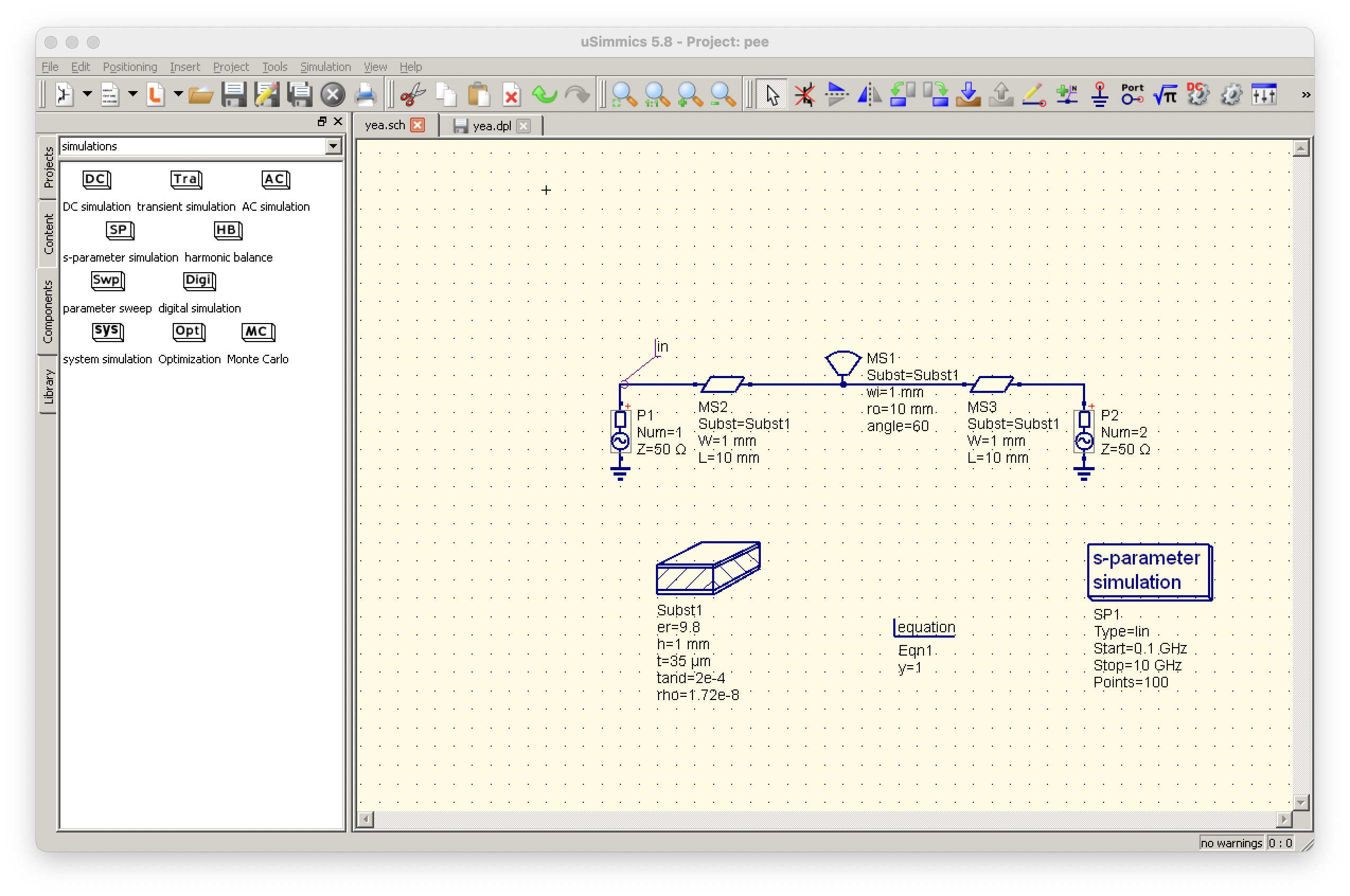
Sorry for the lazy post, have fun simulating!